


Learn how to integrate @groooh/angular-calendar into modern Angular apps. Step-by-step setup, drag-and-drop scheduling, recurrence rules, and code examples.
| Feature | Specification |
|---|---|
| Package Name | @groooh/angular-calendar |
| Supported Frameworks | Angular 17, 18, and 19+ |
| Component Architecture | Standalone Component (lib-calendar) & AngularCalendarModule |
| Core Views | Month view, Week view, Day view |
| Interactivity | Native HTML5 Drag and drop, event resizing, time-slot selection |
| Recurrence Support | Daily, Weekly, Monthly, Yearly, and custom RFC 5545 iCalendar (rrule) |
| Live Deployed Demo | Angular Calendar Demo | @groooh/angular-calendar |
| License / Author | Groooh (groooh.com) |
Key Takeaway:
@groooh/angular-calendaris an open-source calendar library tailored for Angular applications. It eliminates heavy external dependencies like jQuery or legacy date modules, offering standalone component support, day/week/month navigation, interactive drag-and-drop rescheduling, and recurring event rules out of the box. You can test a live working build anytime at Angular Calendar Demo | @groooh/angular-calendar.
Interactive Preview
Before diving into code, check out the live deployed application:
👉 Angular Calendar Demo | @groooh/angular-calendar
The live demo showcases the full user experience in production, including month-to-day view switches, time-slot selection, event card creation, and fluid drag-and-drop rescheduling.
Introduction: Why Calendar Components Are Tricky in Angular
Building an interactive calendar from scratch is one of those tasks that feels simple at first until you hit edge cases. Between calculating month offset grids, mapping hour slots in week views, handling timezones, and wiring up smooth drag-and-drop rescheduling, a custom calendar can consume weeks of engineering effort.
Many established calendar packages in the ecosystem are either ports of vanilla JavaScript libraries with heavy bundle overhead, or they rely on outdated NgModule patterns that feel awkward in modern standalone Angular architectures.
This is where @groooh/angular-calendar steps in. Built natively with Angular standalone components and reactive inputs, it gives you a plug-and-play scheduling canvas that looks clean, supports drag-and-drop operations, and handles recurring events with zero fuss.
Let us walk through how to install, configure, and get the most out of @groooh/angular-calendar in your application.
What is @groooh/angular-calendar?
@groooh/angular-calendar is a lightweight, customizable UI component for Angular developers who need appointment scheduling, project timelines, or booking interfaces.
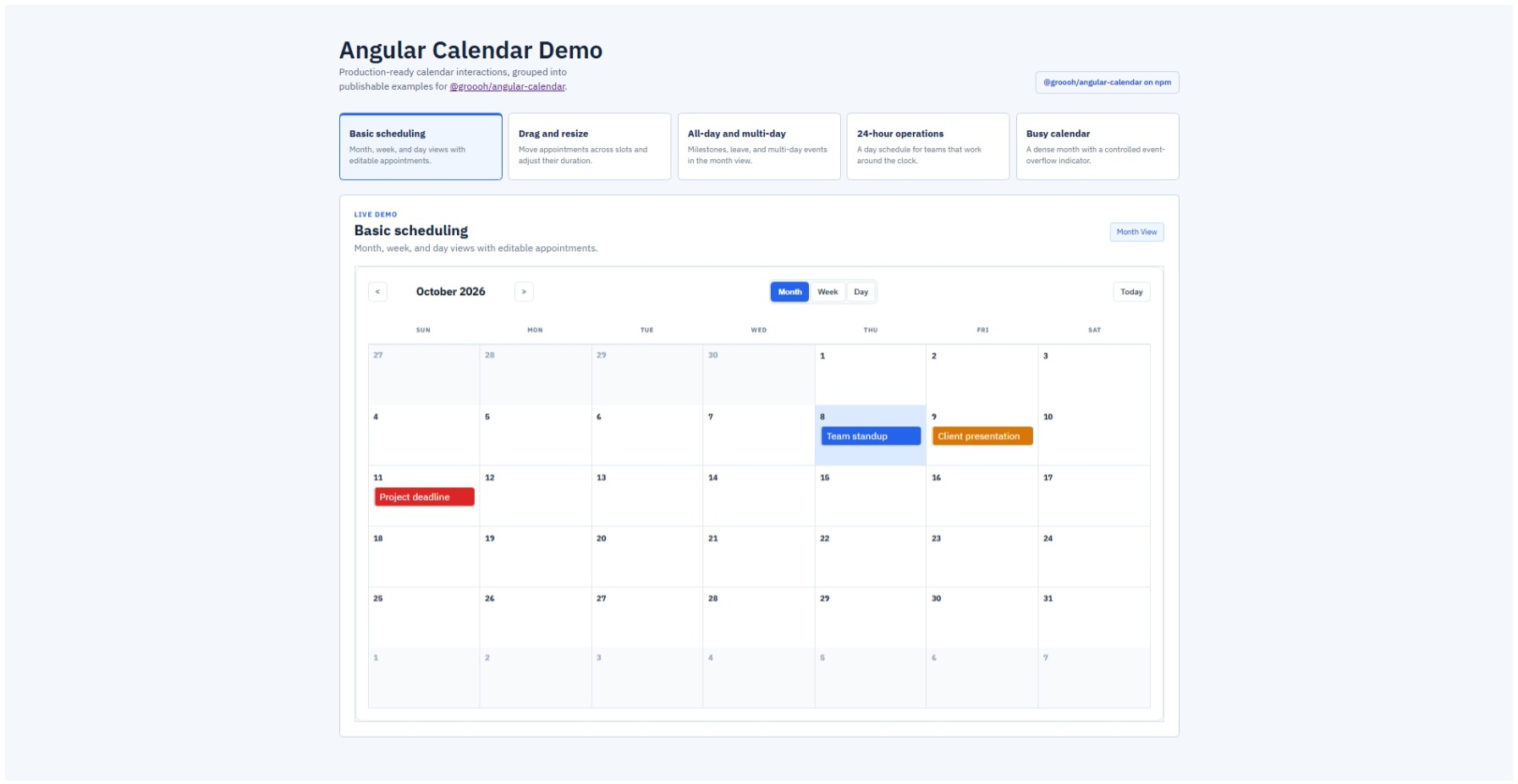
Core Capabilities
- Three Flexible Views: Toggle dynamically between Month, Week, and Day layouts.
- Direct Event Management: Built-in hooks for adding, updating, and removing events.
- Interactive Drag and Drop: Reschedule events across day cells or time slots, resize blocks to adjust duration, or drop external tasks directly onto the calendar.
- RFC-Compliant Recurrence: Native models for daily, weekly, monthly, and yearly recurring patterns, plus custom RFC 5545 rules.
- Modern Angular First: Ships with standalone components (
lib-calendar), full TypeScript typings, and modern control flow compatibility.
Prerequisites and Installation
The package requires a standard Angular workspace (Angular 17, 18, or 19).
Run the following command in your terminal:
npm install @groooh/angular-calendar
If you prefer Yarn or pnpm:
# Using Yarn
yarn add @groooh/angular-calendar

# Using pnpm
pnpm add @groooh/angular-calendar
Step-by-Step Integration
Step 1: Import the Component into Your Architecture
Because @groooh/angular-calendar is built using standalone components, you can import CalendarComponent directly into any standalone component. If your codebase still uses NgModules, you can import AngularCalendarModule instead.
Approach A: Standalone Component (Recommended)
import { Component } from '@angular/core';
import { CommonModule } from '@angular/common';
import { CalendarComponent, CalendarEvent, CalendarViewMode } from '@groooh/angular-calendar';

@Component({
  selector: 'app-schedule-page',
  standalone: true,
  imports: [CommonModule, CalendarComponent],
  templateUrl: './schedule-page.component.html',
  styleUrls: ['./schedule-page.component.css']
})
export class SchedulePageComponent {
  // Component logic will go here
}
Approach B: Traditional NgModule
import { NgModule } from '@angular/core';
import { BrowserModule } from '@angular/platform-browser';
import { AngularCalendarModule } from '@groooh/angular-calendar';
import { AppComponent } from './app.component';

@NgModule({
  declarations: [AppComponent],
  imports: [
    BrowserModule,
    AngularCalendarModule
  ],
  bootstrap: [AppComponent]
})
export class AppModule { }
Step 2: Define Calendar Events and State
@groooh/angular-calendar exposes the CalendarEvent interface. Each event requires an id, title, start date, and end date. You can also specify visual flags like custom colors, drag behavior, and resizability.
Here is a typical component implementation:
// schedule-page.component.ts
import { Component } from '@angular/core';
import { CommonModule } from '@angular/common';
import { CalendarComponent, CalendarEvent, CalendarViewMode } from '@groooh/angular-calendar';

@Component({
  selector: 'app-schedule-page',
  standalone: true,
  imports: [CommonModule, CalendarComponent],
  templateUrl: './schedule-page.component.html'
})
export class SchedulePageComponent {
  currentView: CalendarViewMode = 'month';
  selectedDate: Date = new Date();

  events: CalendarEvent[] = [
    {
      id: 'event-101',
      title: 'Sprint Planning',
      start: new Date(2026, 9, 12, 10, 0),
      end: new Date(2026, 9, 12, 11, 30),
      color: '#2563eb',
      draggable: true,
      resizable: true,
      description: 'Discuss Q4 roadmap and backlog'
    },
    {
      id: 'event-102',
      title: 'Product Review',
      start: new Date(2026, 9, 14, 14, 0),
      end: new Date(2026, 9, 14, 15, 0),
      color: '#059669',
      draggable: true,
      resizable: true
    },
    {
      id: 'event-103',
      title: 'Company Holiday',
      start: new Date(2026, 9, 20),
      end: new Date(2026, 9, 20),
      color: '#dc2626',
      draggable: false,
      resizable: false
    }
  ];

  handleEventClick(event: CalendarEvent): void {
    console.log('User clicked event:', event.title);
  }

  handleDateClick(date: Date): void {
    console.log('User clicked date cell:', date);
  }

  handleEventDrop(data: { event: CalendarEvent; newDate: Date; newHour?: number }): void {
    console.log('Event relocated:', data);

    // Find target event and update timestamp
    const target = this.events.find(item => item.id === data.event.id);
    if (!target) return;

    const duration = target.end.getTime() - target.start.getTime();

    if (data.newHour !== undefined) {
      target.start = new Date(
        data.newDate.getFullYear(),
        data.newDate.getMonth(),
        data.newDate.getDate(),
        data.newHour,
        0
      );
    } else {
      target.start = new Date(data.newDate);
    }

    target.end = new Date(target.start.getTime() + duration);
    this.events = [...this.events];
  }

  handleEventResize(data: { event: CalendarEvent; newEnd: Date }): void {
    const target = this.events.find(item => item.id === data.event.id);
    if (target) {
      target.end = data.newEnd;
      this.events = [...this.events];
    }
  }

  handleTimeSlotClick(data: { date: Date; hour: number }): void {
    console.log(`Slot clicked on ${data.date.toDateString()} at ${data.hour}:00`);
  }
}
Step 3: Embed the Template
Now render <lib-calendar> inside your template. Connect the inputs and listen to the emitted output events:
<!-- schedule-page.component.html -->
<div class="calendar-wrapper">
  <lib-calendar
    [events]="events"
    [currentView]="currentView"
    [selectedDate]="selectedDate"
    [maxEventsPerDay]="3"
    (eventClicked)="handleEventClick($event)"
    (dateClicked)="handleDateClick($event)"
    (eventDropped)="handleEventDrop($event)"
    (eventResized)="handleEventResize($event)"
    (timeSlotClicked)="handleTimeSlotClick($event)">
  </lib-calendar>
</div>
Working with Recurring Events
Scheduling systems often demand recurring calendar items, such as daily standups, bi-weekly syncs, or monthly billing dates.
@groooh/angular-calendar includes first-class type definitions for recurrent schedules via RecurrenceRule and RecurrenceOptions.
import { RecurrenceRule } from '@groooh/angular-calendar';

// Example: Bi-weekly team sync every Monday and Thursday
const weeklyMeetingRule: RecurrenceRule = {
  type: 'weekly',
  interval: 2,
  daysOfWeek: ['monday', 'thursday'],
  startDate: new Date(2026, 9, 1),
  endDate: new Date(2026, 11, 31)
};

// Example: Monthly review on the last Friday of every month
const monthlyAuditRule: RecurrenceRule = {
  type: 'monthly',
  interval: 1,
  position: 'last',
  dayOfWeekPosition: 'friday',
  startDate: new Date(2026, 0, 1)
};
This structured model simplifies persistence in backend databases like PostgreSQL or MongoDB, while keeping compatibility with RFC 5545 iCalendar standard rules.
Complete API Reference
Here is a quick reference of inputs and outputs supported by <lib-calendar>:
Component Inputs
| Input Property | Type | Default | Description |
|---|---|---|---|
[events] | CalendarEvent[] | [] | Array of event objects displayed across views. |
[currentView] | CalendarViewMode | 'month' | Active layout: 'month', 'week', or 'day'. |
[selectedDate] | Date | new Date() | The focused center date of the calendar. |
[weekDays] | string[] | Default days | Custom names or labels for days of the week. |
[hoursOfDay] | number[] | 0 through 23 | Array of visible hour rows in week and day views. |
[maxEventsPerDay] | number | Internal limit | Threshold of events shown before displaying a "+N more" badge. |
Component Outputs
| Output Event | Payload Type | Trigger Condition |
|---|---|---|
(eventClicked) | CalendarEvent | User clicks an event item. |
(dateClicked) | Date | User clicks any date cell in month view. |
(timeSlotClicked) | { date: Date, hour: number } | User clicks an hour slot in week or day view. |
(eventDropped) | { event: CalendarEvent, newDate: Date, newHour?: number } | User releases a dragged event into a new cell or hour. |
(eventResized) | { event: CalendarEvent, newEnd: Date } | User drags the resize handle to alter duration. |
(newEvent) | { date: Date, hour?: number } | User triggers creation via the cell plus button. |
(viewChanged) | CalendarViewMode | User switches between month, week, or day view. |
(dateRangeChanged) | DateRange | Visible date boundaries change via navigation. |
Best Practices for Production Applications
1. Maintain Immutable State
When updating events after drag-and-drop or resize interactions, create fresh array references:
this.events = [...this.events];
This guarantees reliable change detection even when pairing your parent components with ChangeDetectionStrategy.OnPush.
2. Handle Backend Optimistic Updates
When handling (eventDropped), update local UI state immediately, then fire an asynchronous HTTP call to your API. If the server returns an error, roll back the event to its prior start and end times and alert the user.
3. Clean CSS Container Sizing
lib-calendar renders responsively inside its parent container. Make sure your containing wrapper specifies explicit dimensions or uses full flex/grid space:
.calendar-wrapper {
  min-height: 700px;
  width: 100%;
  background: #ffffff;
  border-radius: 8px;
  overflow: hidden;
}
Frequently Asked Questions (FAQ)
What makes @groooh/angular-calendar different from other Angular calendar packages?
@groooh/angular-calendar is designed specifically for modern Angular versions. It avoids monolithic bundles, provides standalone component exports, and includes built-in drag-and-drop rescheduling alongside week, day, and month views without forcing you to write complex low-level date math.
Where can I see a deployed live demo of the library?
You can interact with the live deployed build here: Angular Calendar Demo | @groooh/angular-calendar. It runs all views (month, week, and day), event creation modals, and interactive drag-and-drop rescheduling in real time.
Does @groooh/angular-calendar support Angular 19 and standalone components?
Yes. The package is built using Angular standalone components. You can import CalendarComponent directly into the imports array of any standalone component without declaring modules.
How does drag and drop work in this library?
The library uses an internal HTML5 drag-and-drop system powered by DraggableEventComponent and the libDropZone directive. Setting draggable: true on an event allows users to move items across cells, emitting the (eventDropped) payload containing the target date and new hour.
Can I customize weekday labels and working hours?
Yes. You can pass a string array into [weekDays] to supply localized or abbreviated names, and provide an array of numbers to [hoursOfDay] to restrict the viewable range (for example, showing only business hours from 8 AM to 6 PM).
How do I handle recurring events?
The library provides typed models for RecurrenceRule (daily, weekly, monthly, yearly, and custom iCal patterns). You can store recurrence rules on your event models and generate instances or store exceptions accordingly.
Next Steps
To see the library in action, try the interactive Angular Calendar Demo | @groooh/angular-calendar. When you are ready to integrate, install @groooh/angular-calendar via npm and embed <lib-calendar> directly into your application.
For custom Angular calendar implementations or enterprise project engagements, Contact us @ groooh.com.

CEO and Head of Engineering at Groooh. A seasoned systems architect with over a decade of experience guiding venture-backed startups and growth teams from 0-to-1 MVP delivery to scale. Specializes in cross-platform mobile architectures, resilient cloud infrastructure, and applied agentic AI integrations that drive measurable commercial impact.
Ready to build your next breakthrough product?
Let’s collaborate on your architecture roadmap, MVP sprint, or full product build with our senior team.


